
Claude for Excel: What It Does Well - and Where It Still Falls Short - Issue 311
What Claude for Excel does well, where it still fails, and how to use it safely for analytics and finance

Welcome to the Data Analysis Journal, a weekly newsletter about data science and analytics.
I’m continuing my AI series, and today I’m taking a closer look at Claude for Excel.
A quick step back: for Excel users, the AI journey started in 2024, when Microsoft launched Copilot in Excel. A year later, it also added the COPILOT() function. Neither product has been especially strong, and neither received a particularly warm reception:

Then Anthropic launched Claude in Excel, and the reaction quickly split into two camps: people who are obsessed with it, and people who aren’t impressed at all.
After using it for the past 2 months, I land somewhere in the middle, though slightly closer to the skeptical side. A lot depends on the user, the environment, and the specific use case. Claude in Excel is not something I would trust blindly with a financial model, a KPI scorecard, or any analysis where logic depends on definitions. It is still too willing to overcomplicate formulas, too inconsistent on multi-step requests, and too capable of making mistakes.
Below, I’ll walk through Claude for Excel: how to get started, where it works best, how to use it well, and where it still falls short.

Why Claude for Excel may be the most underrated AI tool in finance
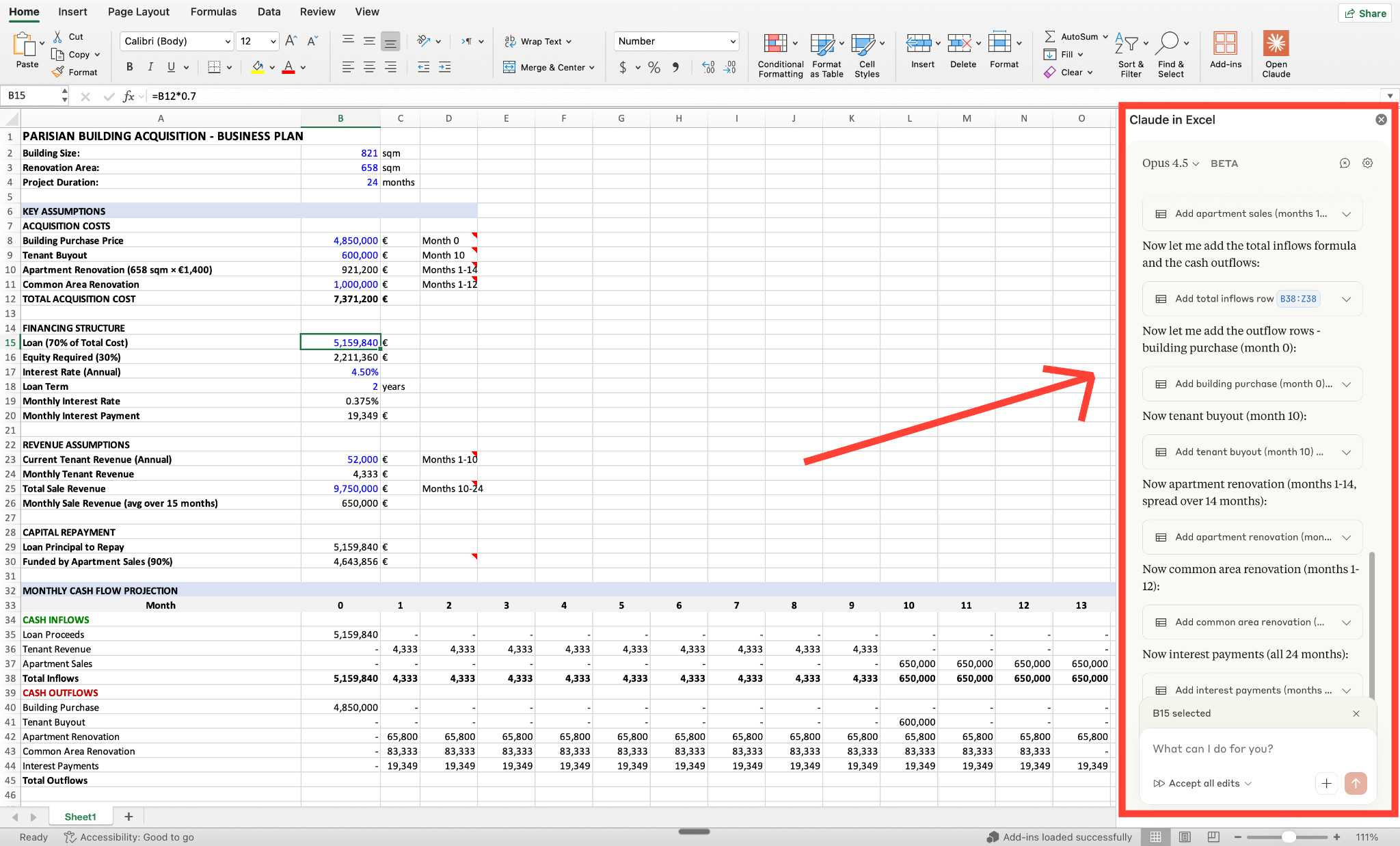
It’s truly powerful - considering it’s still “officially” in beta. It’s an add-in that integrates Claude into your Excel workflow. It supports conversational format, debugging errors, root cause analysis, building new models, navigating complex multi-tab workbooks, and works with connectors to bring context from your other tools. It’s available only on Microsoft Excel - it’s not supported in Google spreadsheets.
I’m skeptical of the output accuracy and precision, but it’s a truly powerful tool in your toolbox:
